Understanding Nurture Permission Levels
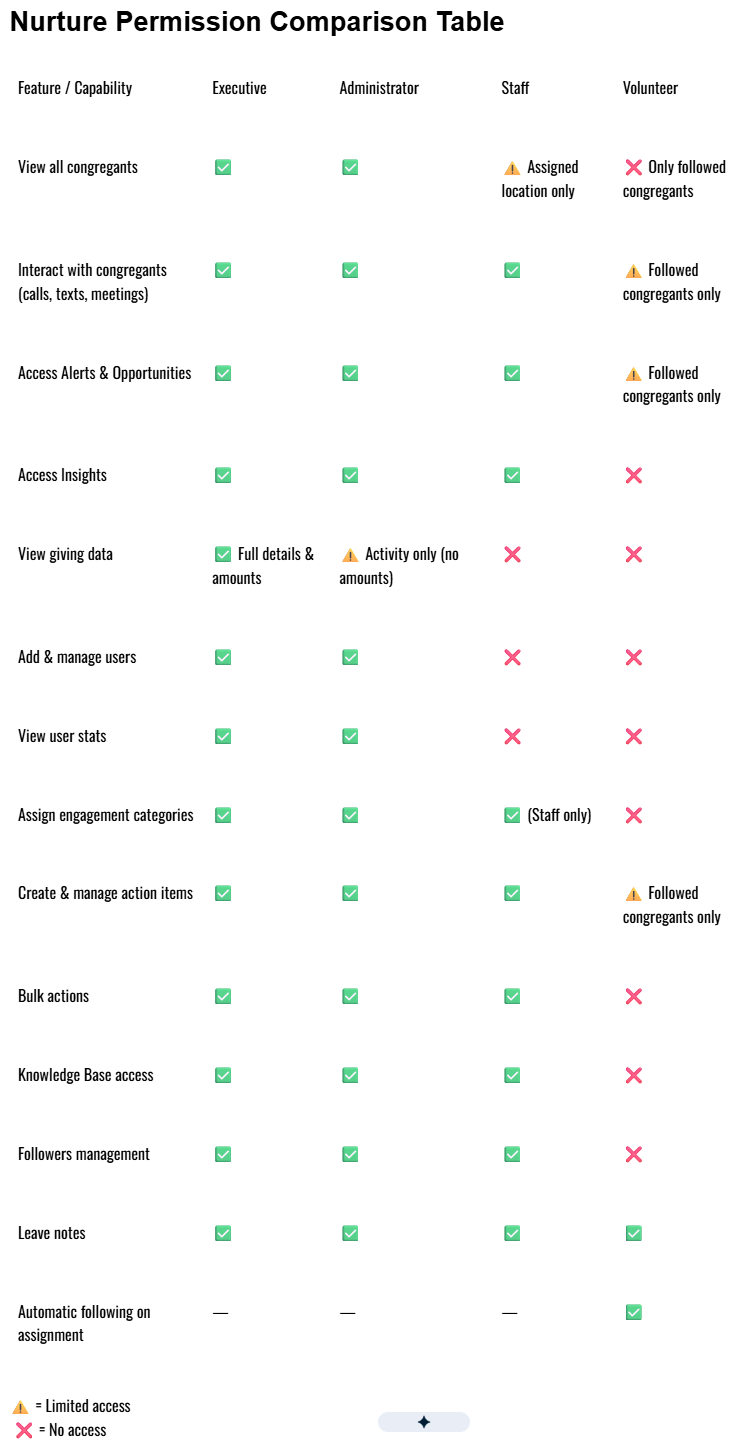
Nurture permission levels are designed to provide the right level of access for each role in your church, balancing visibility, responsibility, and data privacy. Assigning the correct permission level ensures users can care for congregants effectively while protecting sensitive information.
Executive
The Executive permission level provides full system access and should be reserved for senior leadership.
What Executives Can Do
- View all congregant details across all locations
- Access Insights, reports, and user statistics
- View giving information and history, including donation amounts (if activated)
- Add and manage users within Nurture
Best Practice:
This role should be assigned only to the highest level of staff due to its unrestricted access to financial and user data.
Administrator
The Administrator permission level offers broad visibility and management capabilities without access to detailed financial amounts.
What Administrators Can Do
- View all congregant details and engagement data
- Access Insights, reports, and user statistics
- View giving activity but CANNOT activate donation amounts
- Add and manage users within Nurture
Administrators have nearly all Executive permissions, with limited access to sensitive financial details.
Staff
The Staff permission level is designed for pastors, ministry leaders, and care teams who actively engage with congregants.
What Staff Can Do
- View and interact with all congregants at their assigned location
- Access all Alerts, Opportunities, and Insights
- Assign other Staff-level users to engagement categories
- Lead teams of Staff-level users through the Teams tab
Visibility Limitations
- Other Nurture users are not visible unless:
- They are part of a team the staff member leads, and
- They share the same permission level
- They are part of a team the staff member leads, and
Volunteer
The Volunteer permission level provides focused, limited access to support congregant care while protecting sensitive data. Volunteers can engage only with congregants they are directly assigned to follow.
Volunteer Visibility and Access
What Volunteers Can See
- Congregants they follow on the Alerts, Opportunities, and People pages
- Profiles of congregants listed under Known Relationships (view-only)
Access Limitations
Volunteers:
- Cannot take actions on profiles they are not following
(no calls, texts, meeting logs, or action items) - Do not see the Followers section on their dashboard
- Do not have access to:
- Bulk actions
- The Insights page
- The Knowledge Base
- Bulk actions
Actions Volunteers Can Perform
For congregants they are following, volunteers can:
- Make calls, send texts, log emails, and record meetings
- Create, update, and complete action items
- Leave notes on any congregant profile
Automatic Following
When a staff member or leader assigns:
- An engagement, or
- An action item
to a volunteer, the volunteer is automatically added as a follower of that congregant. This ensures they have the visibility and permissions needed to complete the assignment.
Assignment and Reassignment Limitations
To maintain accountability and data integrity, volunteers have the following restrictions:
- Volunteers cannot remove their own followers
- Volunteers cannot unassign users from engagements or action items
- Volunteers may assign or reassign an engagement or action item only to:
- A team leader from a team they belong to, or
- The user who originally assigned the item to them
- A team leader from a team they belong to, or
Reassignment Is Blocked If:
- The volunteer is not following the congregant, or
- The item was assigned by someone else to a different user
These safeguards ensure appropriate oversight while enabling volunteers to participate meaningfully in congregant care.