


Adding & Managing Teams in Nurture
Equipping Leaders with Visibility and Accountability
Summary
The Teams feature in Nurture allows campus pastors and ministry leaders to track their team’s activity, measure engagement, and coach more effectively.
Because many leaders don’t have access to the full Users page, Teams provide a focused view of performance and follow-up, helping ensure consistent ministry rhythms across your church.
Why Teams Matter
Teams give leaders visibility into how their people are engaging in Nurture.
With Teams, leaders can see:
- Total current priorities their team is working on
- Individual team member activity
- Touchpoints made
- Completed priorities
- Overdue priorities
- Total people each user is following
Each of these metrics is clickable, allowing leaders to:
- View detailed activity
- Read actual communication (like touchpoints)
- Identify coaching opportunities
👉 This transforms Teams from a reporting tool into a coaching and accountability system
Who Can Create Teams?
Only users with the following roles can create and manage teams:
- Executive
- Administrator
How to Add a Team
Step-by-Step
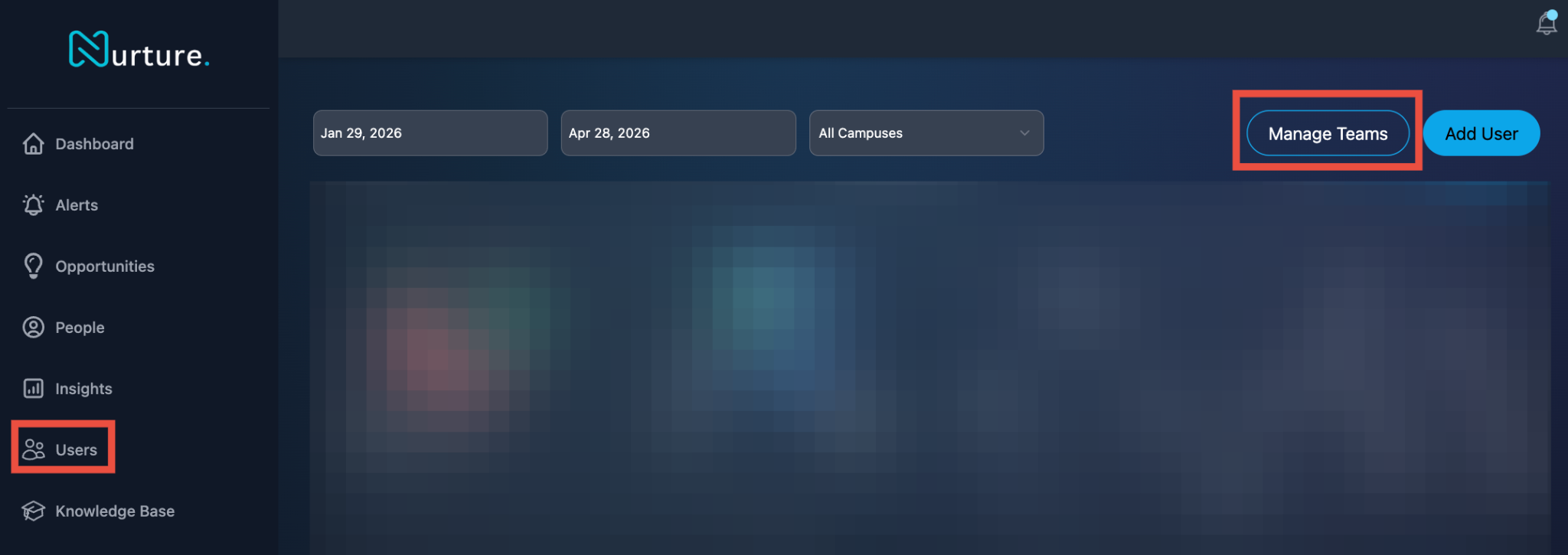
- Navigate to the Users tab
- Click Manage Teams in the top right
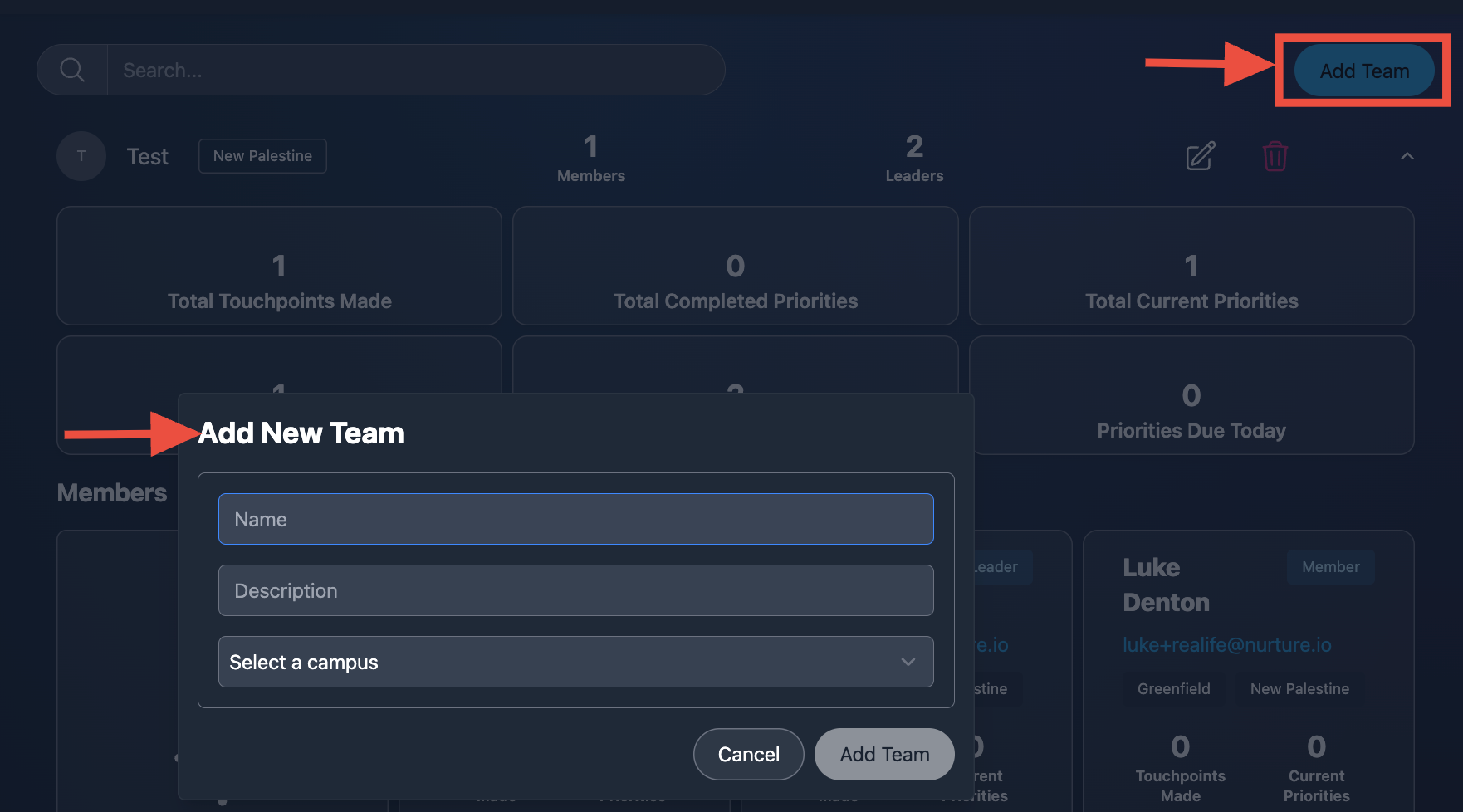
- Click Add Team
- Enter the following:
- Team Name
- Description
- Select a Campus (if applicable):
- If the team is campus-specific, choose the appropriate campus
- If the team is centralized, leave it as “Select a Campus”
- Click AddC Team
How to Add Team Members
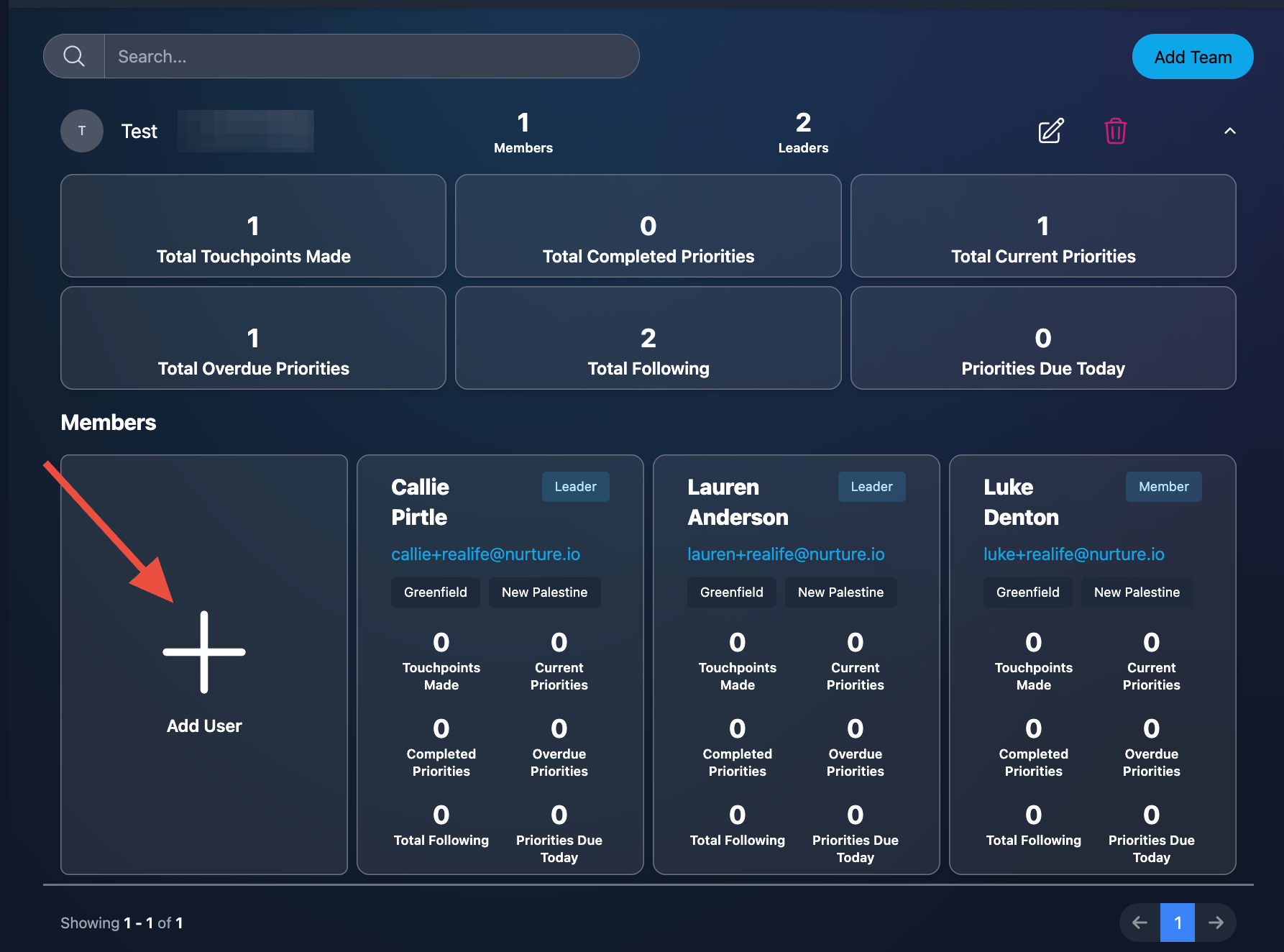
Once your team is created:
- Open the team
- Click + Add User
- Select users to add them as team members
How to Assign Team Leaders
To promote a team member to a leader:
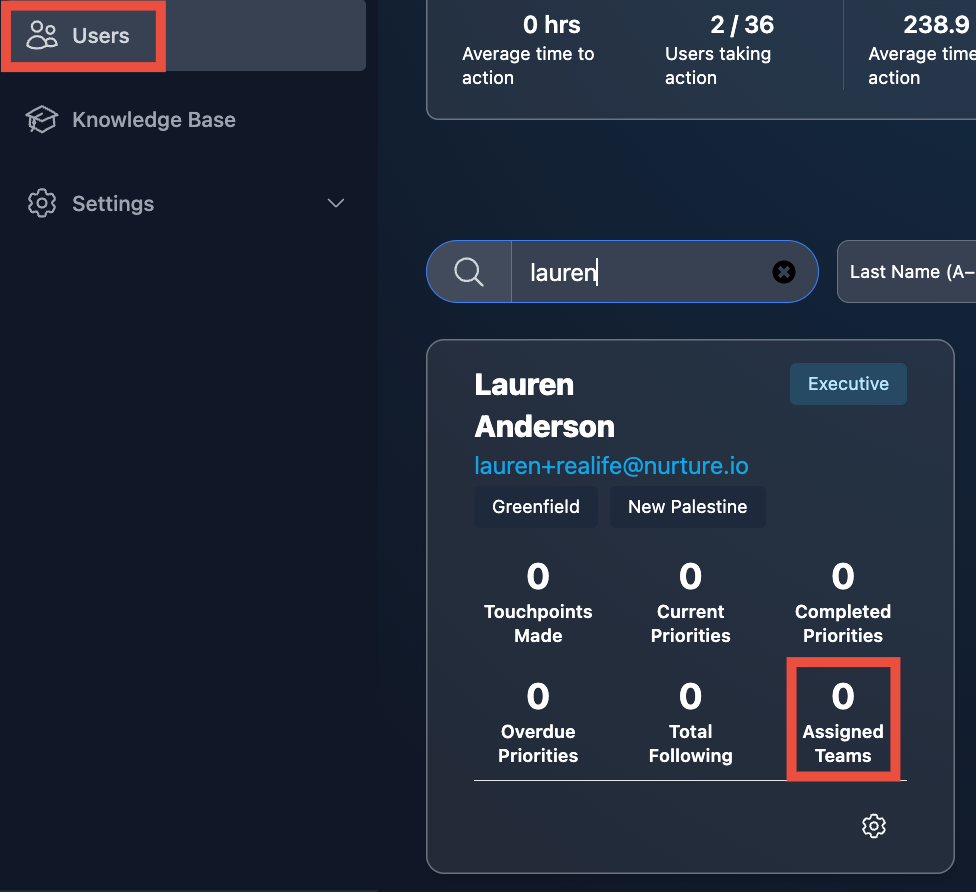
- Go to the Users tab
- Locate the user
- Click Assigned Teams on their user card
- Click Manage Teams
- Select Promote to Leader
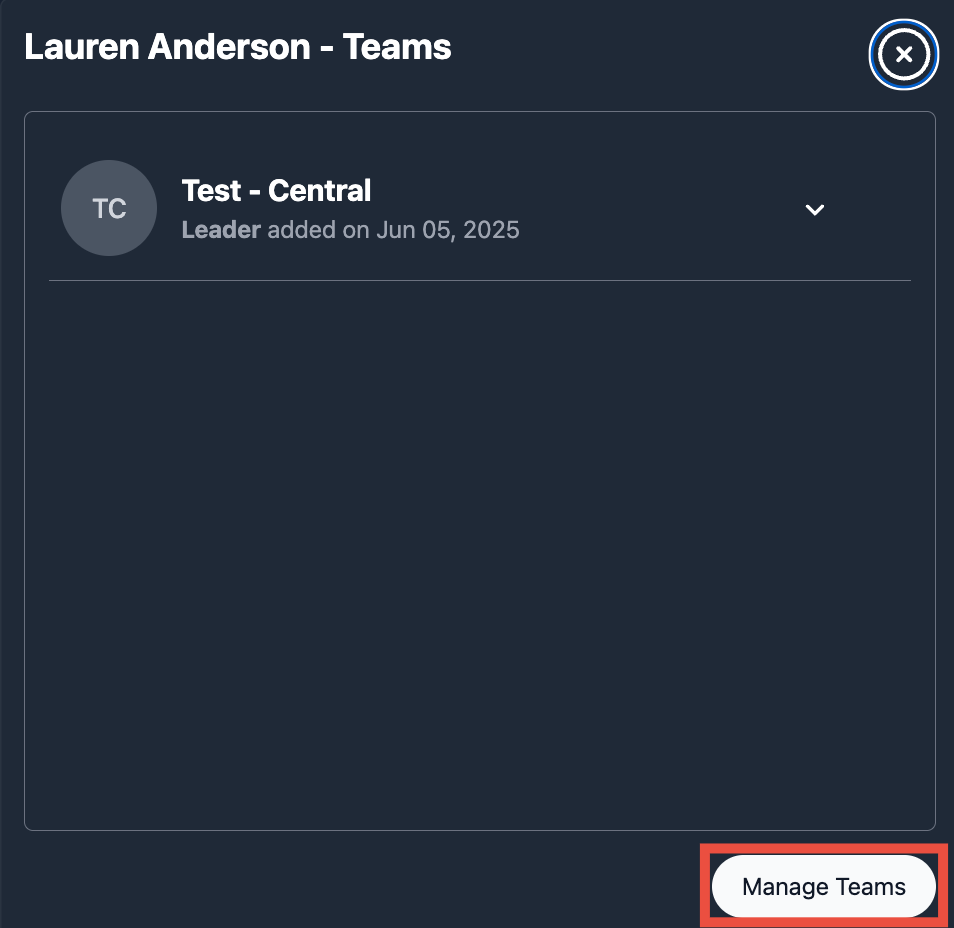
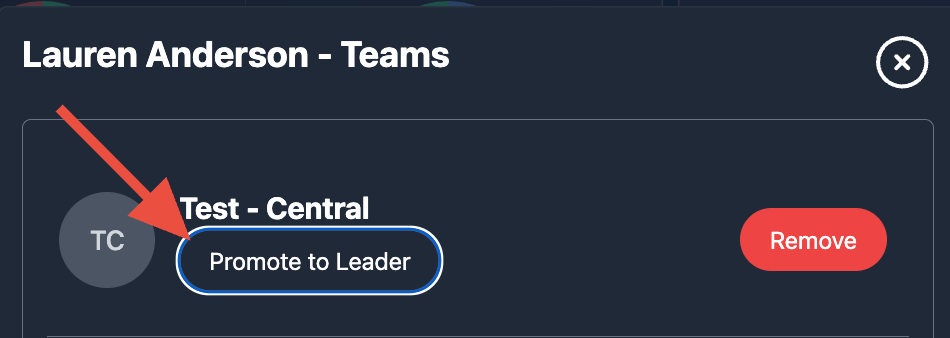
From this same menu, you can also:
- Remove leadership access (demote to member)
- Remove the user from the team entirely
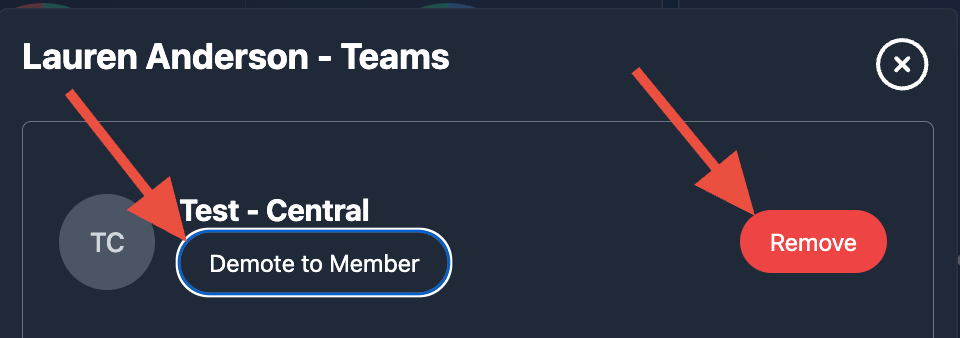
What Team Leaders Can See
Team leaders gain access to team-level performance insights, including:
- Active priorities across the team
- Individual user activity
- Touchpoints made (with full visibility into communication)
- Completed and overdue assignments
- Number of people each team member is following
👉 This allows leaders to:
- Monitor consistency
- Identify gaps
- Coach more effectively
Using Teams for Coaching
Teams are most powerful when used regularly.
Leaders can:
- Review activity weekly
- Identify team members who need support
- Celebrate consistent follow-up
- Address overdue priorities
- Coach based on real interactions, not assumptions
Best Practices
- Create teams based on campus or ministry structure
- Assign clear team leaders
- Review team stats weekly
- Use touchpoint visibility for coaching conversations
- Hold team members accountable to consistent follow-up rhythms
Why This Matters
Without Teams:
- Leaders lack visibility
- Follow-up becomes inconsistent
- Coaching is based on assumptions
With Teams:
- Leaders see real activity
- Accountability increases
- Coaching becomes specific and actionable
- Ministry becomes more consistent and scalable