

Granting Nurture Administrative Access
How to Connect Your Systems for Accurate Data Sync
Summary
To ensure Nurture functions properly, your church must grant administrative access to your systems using:
This allows Nurture to securely sync engagement data, power Insights, and keep your congregation information accurate and up to date.
Why This Matters
Nurture relies on accurate, real-time data to:
- Track engagement across attendance, serving, groups, and giving
- Identify people who need care or are ready for next steps
- Power Alerts, Opportunities, and Insights
Without proper access:
- Data may not sync correctly
- Engagement statuses may be inaccurate
- Follow-up opportunities may be missed
👉 Simply put: Nurture is only as effective as the data it receives
Required Access for Your CHMS
Below are instructions for common platforms:
Church Community Builder (CCB)
To grant admin access in CCB:
- Log in to your CCB account with admin permissions
- Navigate to Settings
- Select Users & Permissions
- Click Add New User
- Enter sync@nurture.io as the email address
- Assign the appropriate Admin or API-level permissions
- Save your changes
Planning Center Online (PCO)
To grant access in Planning Center:
- Log in to your Planning Center account
- Click on your profile icon and go to Account Settings
- Select Permissions
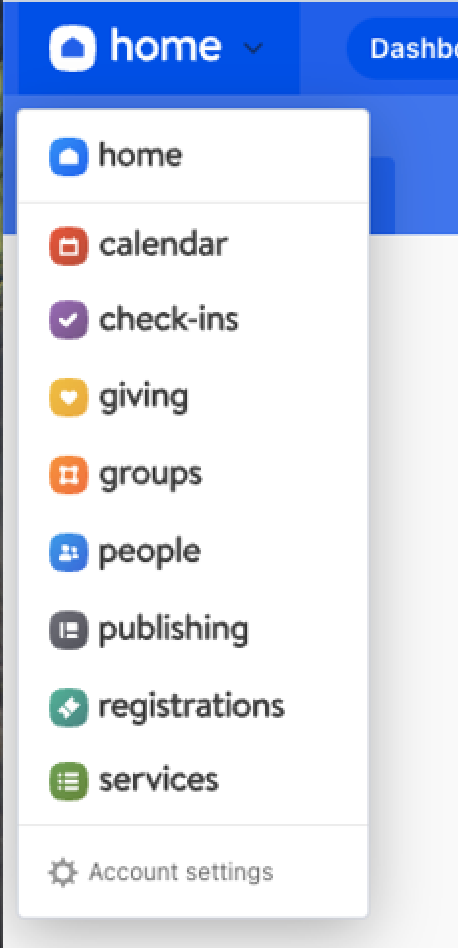
- Navigate to each of the section from the screenshot below (we need access to all)
- Click Add a Person
- Enter sync@nurture.io
- Assign Administrator permissions
- Save your changes
Rock RMS
To grant admin access in Rock RMS:
- Log in to Rock RMS with admin privileges
- Go to Admin Tools
- Select Security > Users
- Click Add User
- Enter sync@nurture.io as the username/email
- Assign the user to a role with Administrator permissions
- Save your changes
This ensures Nurture can:
- Track attendance patterns
- Identify guests and event participation
- Monitor group involvement
- Capture key engagement activities
Final step
After granting access in your CHMS, contact Nurture Support to confirm setup. Our team will verify permissions and ensure your integration is configured correctly.
Important notes
- Admin-level access is required for proper syncing and data management
- Permissions may vary slightly depending on your CHMS configuration
- If you’re unsure which permissions to assign, our support team can guide you
Additional Integrations
For any additional platforms, you will also need to grant access using:
sync@nurture.io
This includes:
- Giving Platforms
- Email Platforms (e.g., Mailchimp)
- Phone / Messaging Integrations
- Any other system connected to your ministry operations
What This Access Enables
By granting access, Nurture can:
- Sync data automatically
- Keep engagement records up to date
- Power accurate Insights dashboards
- Enable messaging and communication tools
- Ensure your team is working with real-time information
Security & Permissions
- Access is used strictly for syncing and integration purposes
- No data is shared outside of your Nurture environment
- Permissions are limited to what is necessary for functionality
👉 If your IT team has questions, they can coordinate directly with Nurture support.
Best Practices
- Grant access during initial setup to avoid delays
- Double-check permissions are fully enabled (not partial access)
- Ensure all relevant systems are connected, not just your CHMS
- Revisit permissions if integrations stop syncing
Common Issues to Avoid
- Granting access to only some modules
- Using the wrong email address
- Forgetting to connect secondary systems (giving, messaging, etc.)
Why This Matters
Without proper access:
- Data gaps occur
- Engagement insights become unreliable
- Ministry decisions are harder to make
With proper access:
- Your data is accurate
- Your team is aligned
- Your ministry becomes more intentional
Final Thought
Nurture works best when it has a complete picture of your church.
Granting the right access ensures you’re not just collecting data but you’re using it to shepherd people well.