

Before You Begin
Our currently supported integrations are:
- Clearstream
- Text In Church
- Dialpad
Nurture can also integrate with other providers that offer:
- API access
- Webhook capabilities
If you are using a different messaging provider, contact Nurture Customer Support to confirm compatibility.
To activate a phone integration, you will need:
- API credentials from your messaging provider
- Webhook access enabled in your messaging account
- Any necessary subaccount credentials (if applicable)
If you are unsure how to access API settings, contact your provider’s technical support team for assistance.
Once gathered, this information must be sent to Nurture Customer Support to complete setup.
Integration Setup by Provider
Clearstream Integration
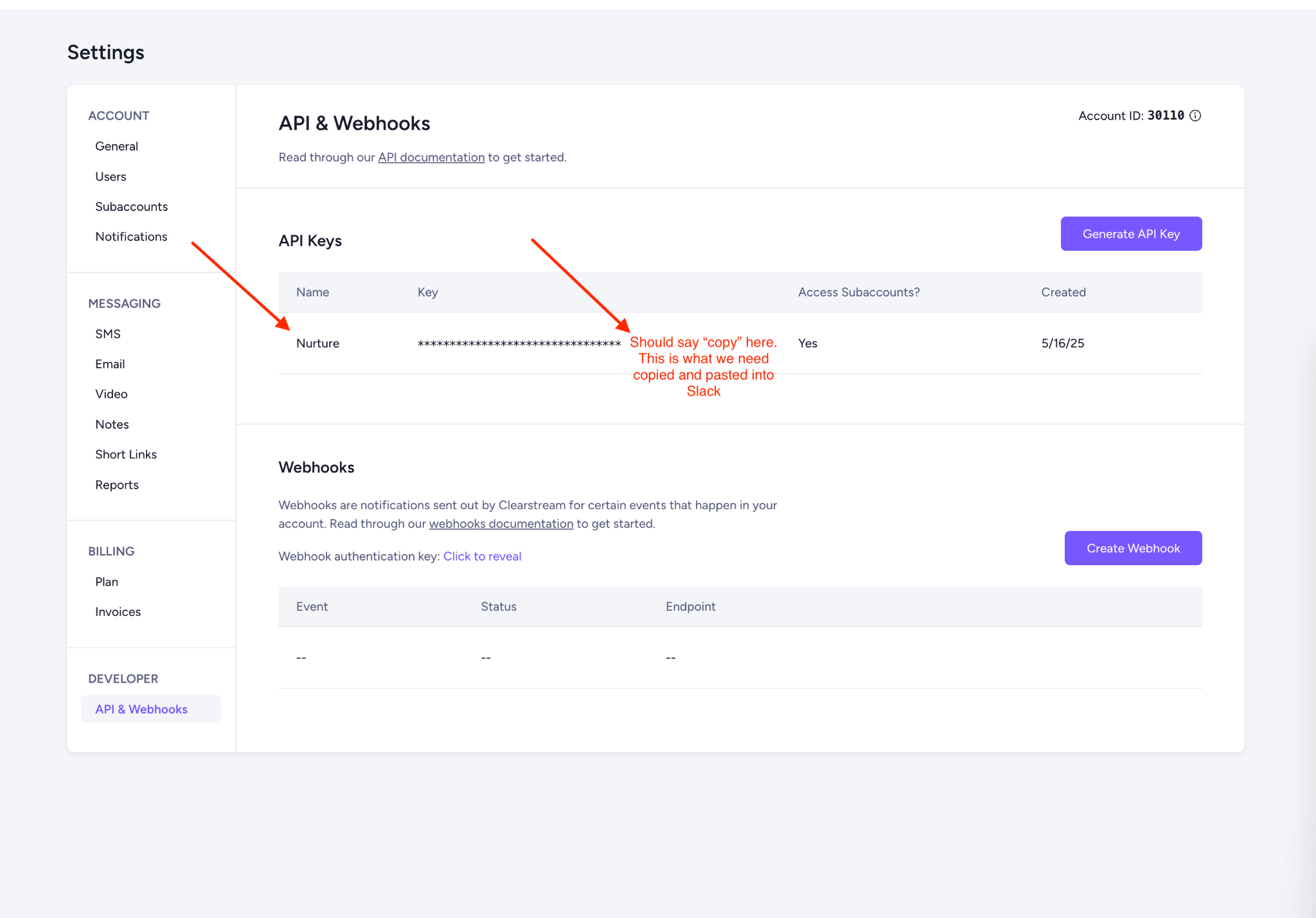
Step 1: Obtain API Keys
- Log into your Clearstream account.
- Navigate to Settings.
- Locate the API section.
- Generate or copy your:
- API Key
- Secret Key (if applicable)
Step 2: Subaccount Access (If Applicable)
If your church uses Clearstream subaccounts:
- Ensure API access is enabled for the correct subaccount.
- Provide the subaccount identifier along with the API credentials.
Step 3: Enable Webhooks
- In Clearstream, navigate to the Webhooks section.
2. Confirm webhook events are enabled for:
- Sent messages
- Delivered messages
- Incoming messages
Text In Church Integration
Step 1: Access API Credentials
- Log into Text In Church.
- Navigate to Account Settings or Developer Settings.
- Locate and copy your:
- API Key
- Account ID (if required)
If API access is not visible, contact Text In Church support to enable it.
Step 2: Configure Webhooks
- Navigate to Webhook Settings within your account.
- Add the webhook URL provided by Nurture.
- Enable webhook notifications for:
- Incoming messages
- Outgoing messages
- Delivery updates
Dialpad Integration
Step 1: Generate API Access
- Log into your Dialpad Admin Portal.
- Navigate to Developer or API Settings.
- Create or copy your:
- API Token
- Organization ID (if required)
Step 2: Enable Webhooks
- In the Developer settings, locate Webhooks.
- Add the webhook URL provided by Nurture.
- Enable event notifications for:
- SMS messages
- Call activity
- Message status updates
If needed, Dialpad support can assist with enabling developer access.
Submitting Information to Nurture
Once you have:
- API Key
- Secret Key (if applicable)
- Account ID or Subaccount ID (if applicable)
- Webhook confirmation
Send this information securely to Nurture Customer Support.
Our team will:
- Verify credentials
- Confirm webhook connectivity
- Complete integration setup
- Provide next steps or testing instructions
Custom Integrations
If your provider is not listed above, integration may still be possible if they support:
- REST API access
- Webhook event notifications
Contact Nurture Support with:
- Your provider’s name
- API documentation (if available)
- A technical contact (if applicable)
Our team will evaluate compatibility and advise on next steps.