


Creating Personalized Messages at Scale
Summary
Message Presets allow your team to create a library of reusable message templates so you can communicate quickly while still keeping every message personal.
With built-in placeholders and AI-powered suggestions, Message Presets help your team save time, stay consistent, and care for people more effectively.
What Are Message Presets?
Message Presets are pre-written templates that can be used when sending messages in Nurture.
These templates can automatically include personal details like:
- First name
- Spouse’s name
- Kids’ names
- Your church name
👉 This means every message feels personal without rewriting the same message over and over.
Who Can Set Up Message Presets?
The Message Presets library is managed by:
- Executives
- Administrators
They create and maintain templates for the entire organization.
👉 Once created, all users can access and use these presets when sending messages.
Where to Find Message Presets
To create or manage presets:
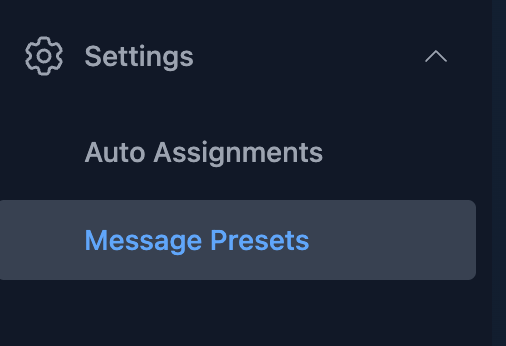
- Go to Settings
- Select Message Presets from the side navigation
What Executives & Administrators Can Do
1. Create a Template from Scratch
To create a new preset:
- Click New Preset
- Add a Subject
- This acts as the template name (e.g., “Birthday Wish”, “Welcome Message”)
- Write your message content
- Insert placeholders for personalization
- Optionally add emojis using the built-in picker
- Click Save

2. Edit or Delete a Template
- Select any existing preset from the list
- Update the subject or message content
- Or delete the template if it’s no longer needed
3. Generate Templates with AI
Message Presets include an AI assistant to help you get started quickly.
To use it:
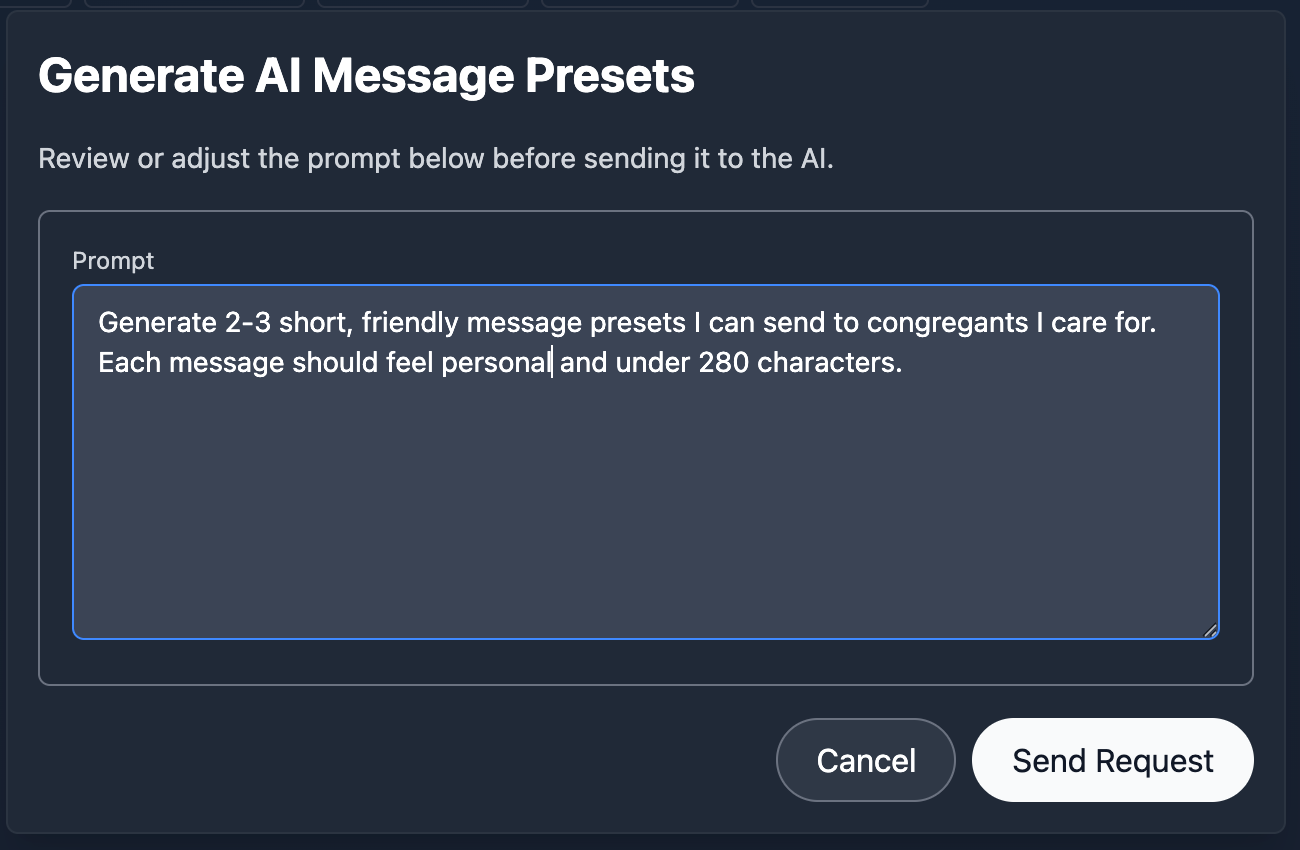
- Click AI Suggestions
- Review or edit the prompt
- Click Send Request
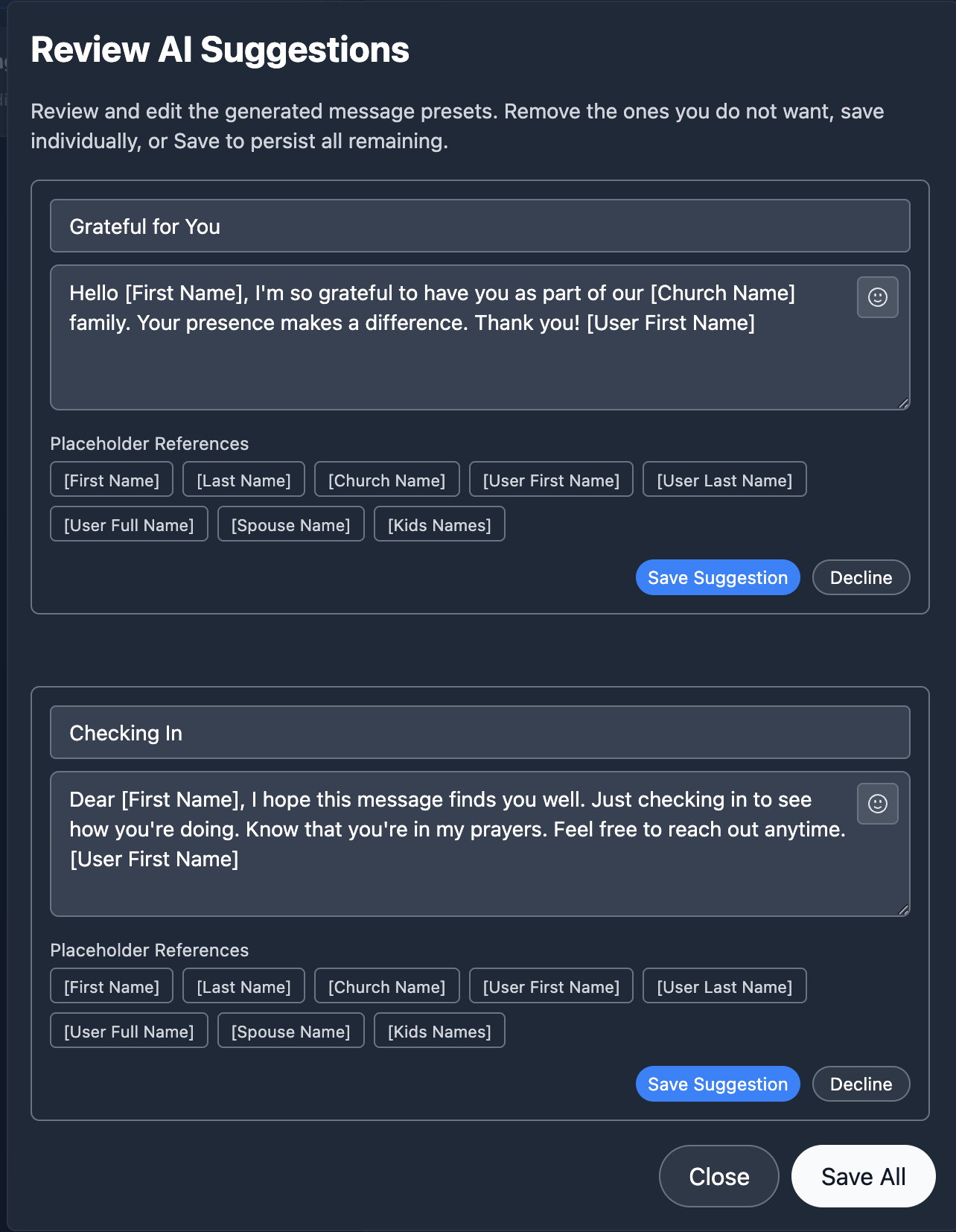
The AI will generate a set of suggested templates.
From there, you can:
- Edit any suggestion
- Remove ones you don’t want
- Save individual templates
- Or save all suggestions at once
👉 This is a great way to quickly build a strong starting library.
Using Smart Placeholders
Placeholders allow your messages to automatically personalize for each recipient.
Instead of typing names manually, you can insert dynamic fields that populate when the message is sent.
Available Placeholders
- First Name → Recipient’s first name
- Last Name → Recipient’s last name
- Spouse Name → Pulled from known relationships
- Kids Names → Formatted naturally (e.g., “Emma, Noah, and Sophie”)
- Church Name → Your church’s name
- User Name Fields → The sender’s name
Example
Template:
“Hi [First Name], hope [Spouse Name] and the kids are doing well!”
Sent message:
“Hi John, hope Mary and the kids are doing well!”
👉 Personalization happens automatically, no extra work required.
Where Message Presets Are Used
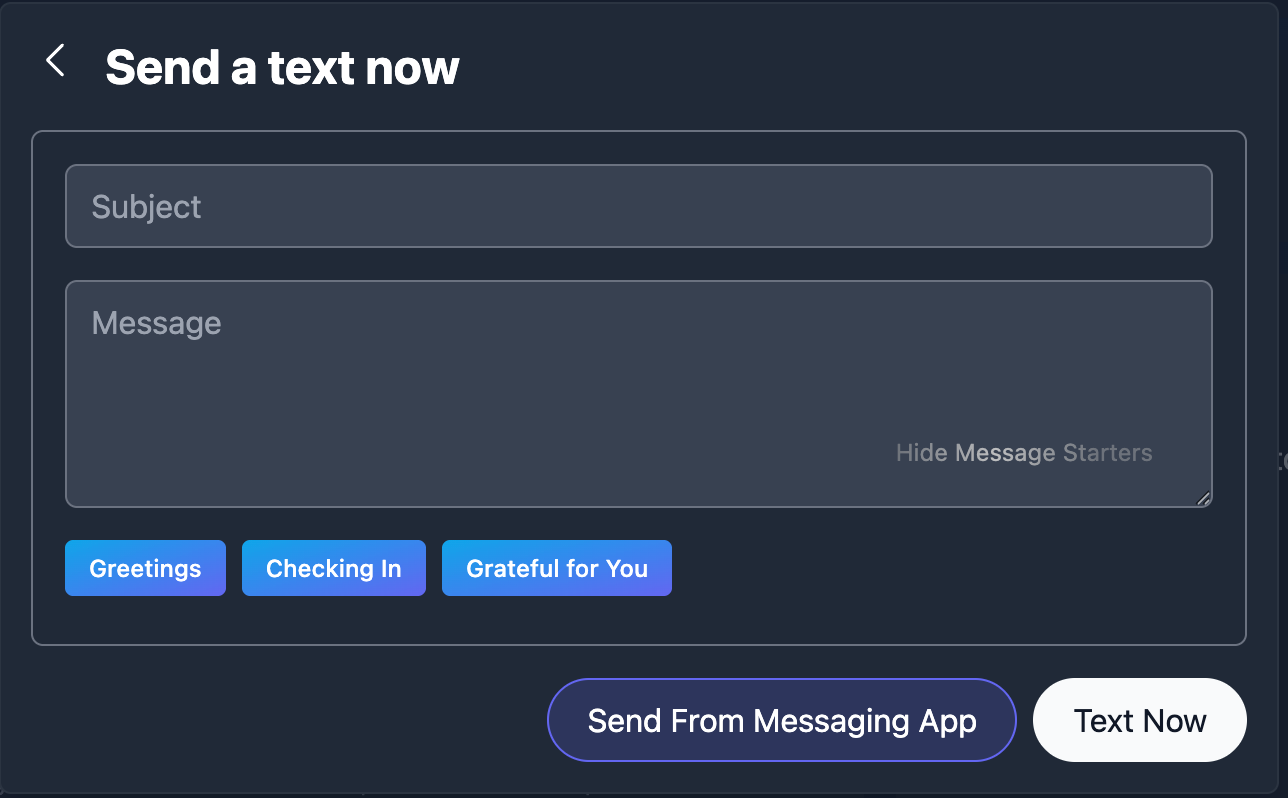
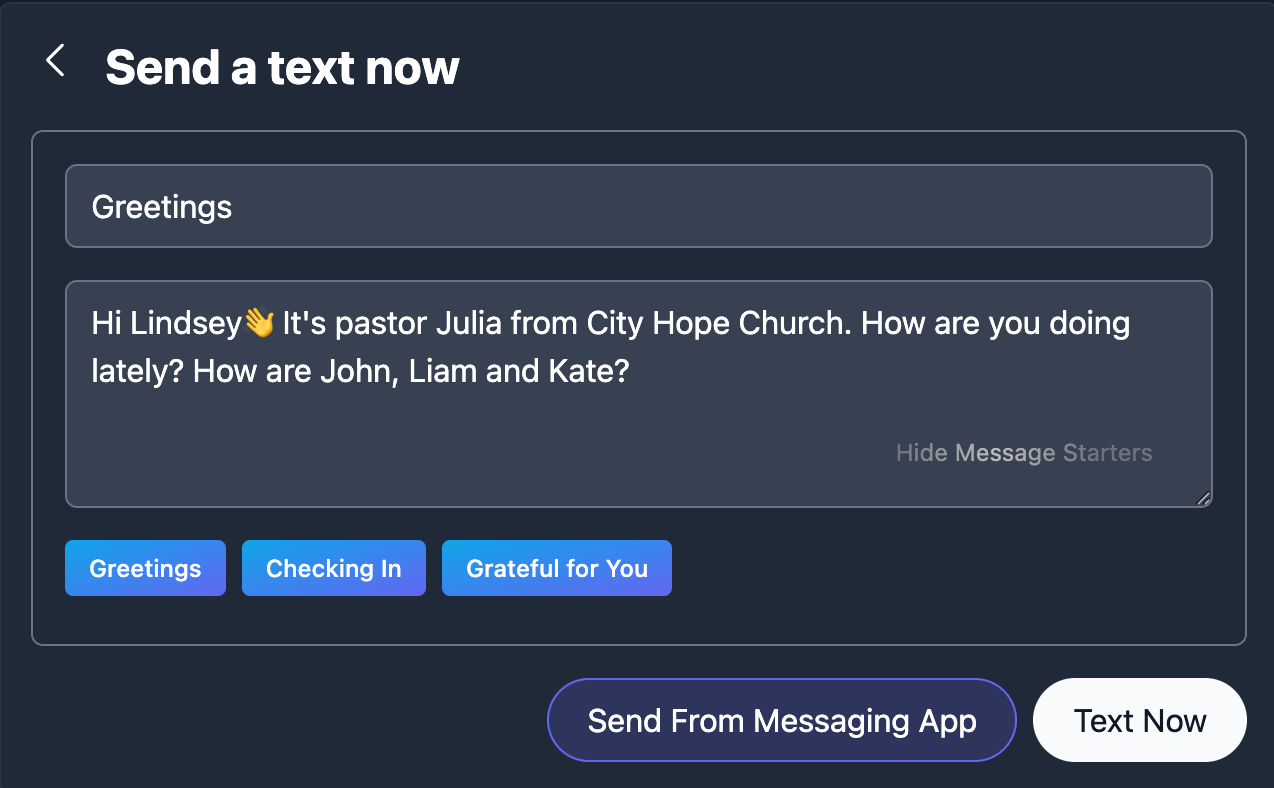
Once saved, presets appear anywhere a user is composing a message.
To use a preset:
- Click Message Starters
- Select a preset
- The message will populate with personalized details
- Send as-is or edit before sending
Best Practices
- Keep messages short, warm, and conversational
- Use placeholders to maximize personalization
- Create presets for common moments:
- First-time guest follow-up
- Birthday messages
- At-risk check-ins
- Volunteer encouragement
- Use AI suggestions to build your initial library
- Regularly review and update templates
Why This Matters
Without Message Presets:
- Messages take longer to write
- Communication becomes inconsistent
- Personalization is harder to maintain
With Message Presets:
- Your team moves faster
- Messages stay consistent
- Every person feels known and cared for
Final Thought
Message Presets help your team communicate at scale without losing the personal touch.
Because in ministry, it’s not just about reaching people.
It’s about making sure they feel seen.


